
Support
HOW MAY WE HELP YOU TODAY?
SUPPORT FAQS
After a membership renewal has been purchased, SkyGolf will send an Activation Email so that you can finalize this renewal on your SkyCaddie. Look for the email titled "Activate Your Membership from SkyGolf". Click on the "Activate Now" button from within that email to attach the membership to your SkyCaddie.
SYNC your SkyCaddie
For Wi-Fi SYNC, see steps below:
Handhelds
1. WiFi set up can be enabled from either the SYNC or REGISTER NOW buttons.
2. Select WiFi Sync.
3. Once the “Initializing” screen comes up, press SETUP in the top right corner.
4. Choose the WiFi connection you want to use and enter the password if prompted.
5. Once connected, exit the Setup.
video:
https://www.skycaddiepromo.com/wifi/
If your SkyCaddie is connected USB to the computer, SYNC the SkyCaddie after you complete the email activation.
For further assistance, please contact our Support team at 866-759-4653 for US customers (0800 883 0505 for UK & EU) during business hours.
Be sure to SYNC (synchronize) your SkyCaddie via Wi-Fi
(for SX, Pro 5X Models / SkyCaddie LX5 & LX2)
How do I connect using Wi-FI?
There is no need to connect to your computer through USB. Easily connect to WIFI by following the instructions below:
• Power ON & Choose “SYNC”
• Select “Wi-Fi Sync”
• Choose “Set Up Wi-Fi”
• Choose “Network” (router)
• Login with your Network Password and “Connect”
• Sync Complete/ Select “CLOSE”
video:
https://www.skycaddiepromo.com/wifi/
For further assistance, please contact our Support team at 866-759-4653 for US customers (0800 883 0505 for UK & EU) during business hours.
After You Renew
Be sure to SYNC (synchronize) your SkyTrak via Network Mode
Network Connection Guide:
1.) To connect in Network Mode, Click the ‘Device Connections’ icon at the
bottom of the SkyTrak app dashboard.
2.) Please follow our detailed instructions in the software to connect
SkyTrak in Network Mode
If you are experiencing issues downloading CaddieSync Express and you are currently using AOL (America Online) or Internet Explorer (IE), please go to www.google.com to download GOOGLE CHROME (free) or to https://www.mozilla.org to download and install MOZILLA FIREFOX (free).
These web browsers will allow the installation of CaddieSync Express
For further assistance, please contact our Support team at 866-759-4653 for US customers (0800 883 0505 for UK & EU) during business hours.
IPHONE
ANDROID
For further assistance, please contact our Support team at 866-759-4653 for US customers (0800 883 0505 for UK & EU) during business hours.
Billing
Bluetooth Sync (LX5 & LX2) (TOUCH)
“Note” : Please download Skygolf 360 App from Play Store or App Store on your Smartphone
-have bluetooth on prior to SYNC for ANDROID phones-
To turn ON Bluetooth in your SkyCaddie:
Press and hold Bottom Right button to get Menu -->
Tap on Sync -->
Under Sync tap on “BLUETOOTH” -->
Tap on Sync Now-->
When the SkyCaddie displays “Ready to Sync”, press the “Sync” button in the SkyGolf 360 Mobile app on your smartphone -->
When the sync has been completed, press “Exit”.
VIDEO:
How to Connect via Bluetooth and get Notifications
https://www.youtube.com/watch?v=pv5Y9phZn6E&t=28s
SkyCaddie TOUCH
1. Make sure you have paired your SkyCaddie TOUCH with your mobile device (see section 1.1.3).
2. On your SkyCaddie TOUCH, select the “Sync” button on the Main Menu to turn on Bluetooth and connect to your mobile device.
3. On your mobile device, open the SkyGolf 360 app and go to “Courses” at the bottom of your screen.
Note: If you have a SkyCaddie Pro 5X, SX500, SX400, SX550, LX2 or LX5, please sync via Wi-Fi.
To Our Valued Legacy SkyCaddie Members,
For over a year, we have been communicating with customers who are using legacy SkyCaddie products manufactured before 2015 to advise them that our systems will no longer support those products. This support specifically relates to the antiquated USB connectivity method those legacy SkyCaddies use for course downloads and membership renewals.
We are now aware that customers are experiencing challenges and interruptions with the USB connection to CaddieSync. You may continue to use your device with your current membership; however, to ensure a seamless experience this golf season, we strongly recommend upgrading to our latest devices featuring Wi-Fi connectivity.
Exclusive Upgrade Offers
As a special offer, you have an exclusive opportunity to upgrade to a new SkyCaddie with advanced features, from enhanced course details and to larger responsive touch screens. And there are several ways to Upgrade:
Choose one of the offer links in this email.
Or simply log into your SkyGolf account and click here to see all of your upgrade options.
If you need more assistance, you can reach our Support team at 866-759-4653 to speak to a Representative that will be happy to place an order for you. Your current active membership will be seamlessly transferred upon upgrading and ready to use out of the box.
We appreciate your loyalty while we prioritize modern technology to provide superior products to every golfer.
Thank you for your understanding and continued support.
For further assistance, please contact our Support team at 866-759-4653 for US customers (0800 883 0505 for UK & EU) during business hours.
For further assistance, please contact our Support team at 866-759-4653 for US customers (0800 883 0505 for UK & EU) during business hours.
For further assistance, please contact our Support team at 866-759-4653 for US customers (0800 883 0505 for UK & EU) during business hours.
If you need to retrieve your username or password CLICK HERE
When the login page appears you can click on "Forgot your username or password".
It is located below the "Log In" button.
Then, fill out the necessary information to retrieve your username or password.
For further assistance, please contact our Support team at 866-759-4653 for US customers (0800 883 0505 for UK & EU) during business hours.
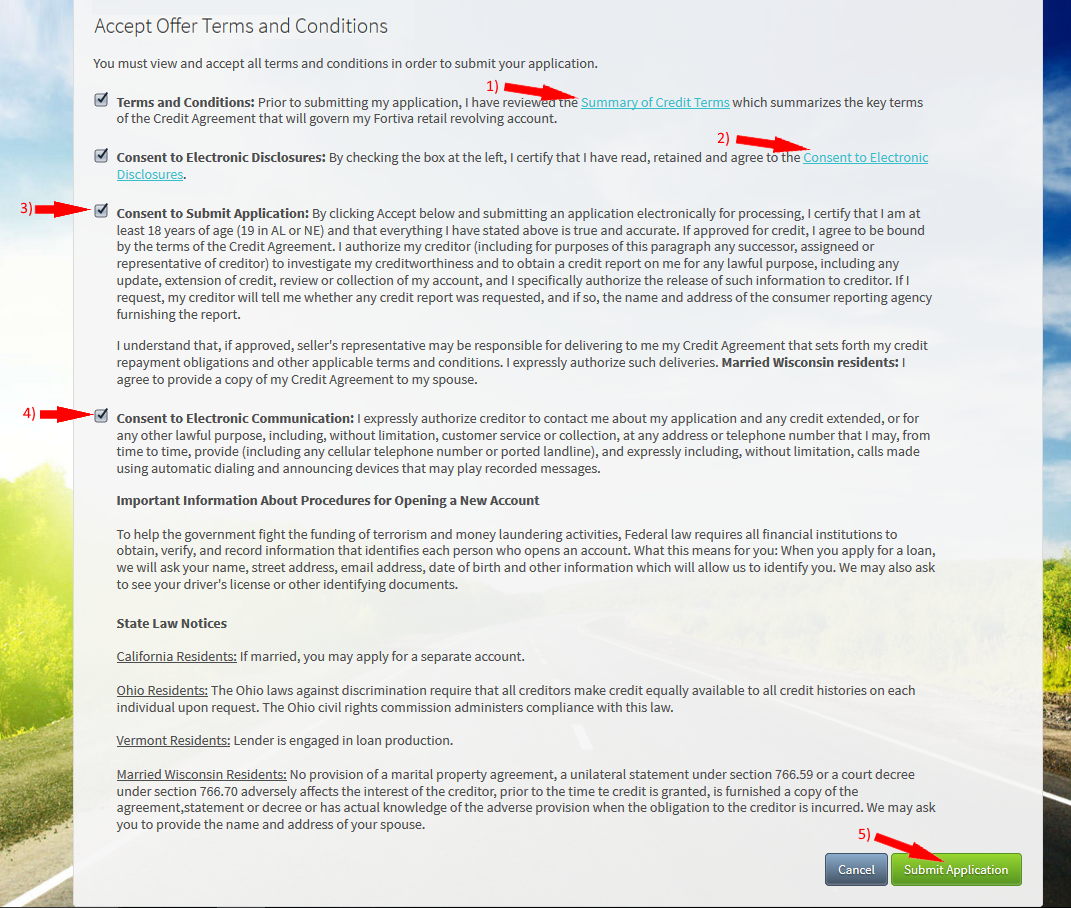
Accept offer Terms and Conditions Steps
Important: You must review the Summary of Credit Terms and the Consent to Electronic Disclosures documentation before continuing. Simply clicking the checkbox will not allow you to continue.
Steps:
1. Click on the “Summary of Credit Terms” link to view and accept the terms.
2. Click on the “Consent to Electronic Disclosures” link to view and accept the terms.
3. Click the “Consent to Submit Application” checkbox to accept the terms.
4. Click on the “Consent to Electronic Communication” checkbox to accept the terms.
5. Once all terms have been read and agreed upon, click the “Submit Application” button to continue.
For further assistance, please contact our Support team at 866-759-4653 for US customers (0800 883 0505 for UK & EU) during business hours.
Example of Terms and Conditions
Important information for SkyCaddie Customers!
For customers using Wi-Fi or Bluetooth-enabled SkyCaddie models, please refer to our helpful guide to renewing and syncing here: CLICK HERE
Per our communication over the last 12 months, customers with older SkyCaddie models without Wi-Fi or Bluetooth capabilities, Caddie Sync Express may no longer be compatible with your device.
We encourage you to upgrade to our latest models, and rest assured that our support team is available and prepared to assist you every step of the way. Click here to contact Support.
For further assistance, please contact our Support team at 866-759-4653 for US customers (0800 883 0505 for UK & EU) during business hours.
Promotional Offers
Check below to see what's we have available for our valued customers!
REGISTERING THE PRO 5X
There are two ways to activate and register your SkyCaddie PRO 5X:
1. Power on your PRO 5X.
2. On the Home screen, select the “Register” button.
3. Follow the on-screen instructions to complete the registration process.
Video instructions available here:
How to register as an existing customer
Is your SkyCaddie broken or malfunctioning?
View replacement options.
SkyGolf does not have a repair facility nor replacement parts such as batteries or connection ports for repair.
For further assistance, please contact our Support team at 866-759-4653 for US customers (0800 883 0505 for UK & EU) during business hours.
RETURNS
For Credits:
Please be sure to return all items for a 30-day return including user and product guides, retail packaging box, cables, etc. Failure to return all items in these terms will be subjected to a 15% restocking fee or charged for the non-returned item(s).
- 30-day period is effective upon date of purchase.
- Shipping and handling are excluded.
- Any returns must be in original packaging, include all components, and be in like new condition.
- All returns are subject to a 15% restocking fee and will be charged for any non-returned items included in the Return Merchandise Authorization.
- Any SkyCaddie watch returned under the 30-day return policy without the watch bands attached will be billed.
fees and procedures
For US customers, the shipping prices for areas outside of the contiguous 48 states will result in higher delivery fees. These fees can be quoted by calling 866-759-4653. If an order is placed outside of these 48 states, Support will contact you to obtain payment for the additional shipping fee.
For further assistance, please contact our Support team at 866-759-4653 for US customers (0800 883 0505 for UK & EU) during business hours.
SkyCaddie LX2
For further assistance, please contact our Support team at 866-759-4653 for US customers (0800 883 0505 for UK & EU) during business hours.
SkyTrak
Support Phone Numbers
If you would like to reach our phone support team, please contact us at 1-866-759-4653 for US and CA customers and to 0800 883 05 05 option 1 for UK customers.
For further assistance, please contact our Support team at 866-759-4653 for US customers (0800 883 0505 for UK & EU) during business hours.
NOTE: If you have a SkyCaddie Pro 5X, SX500, SX400, SX550, LX2 or LX5 device, please SYNC your unit via Wi-Fi for the latest updates.
For further assistance, please contact our Support team at 866-759-4653 for US customers (0800 883 0505 for UK & EU) during business hours.
Trade Up to the Pro 5X SkyCaddie
Click Here
How it works:
Simply send us your old rangefinder product and once received, we will credit your payment method $50.
This offer is available on any GPS rangefinder, any model, DEAD or ALIVE.
1. Order your new SkyCaddie SX550, SX400, LX5C or LX5 at www.skygolf.com. This offer is only for SkyGolf.com purchases.
2. Send us your old rangefinder with this form COMPLETELYfilled out along with a copy of your SkyGolf.com receipt.
3. Once your old rangefinder is received we will credit your original purchase (via payment method, i.e. credit card) with $50.
4. Go play the best golf of your life and tell all your friends!
terms:
Not valid on previous purchases.
Only one $50 credit with trade in device per SkyCaddie purchase. Trade In available for any rangefinder brand, any model, regardless of its condition.
Trade In credit only available on purchase of a new SkyCaddie (not preowned, open box or refurbished products) purchased directly at www.skygolf.com.
Please allow 3-5 Business Days for order processing.
Please allow 14-21 business days from date of receipt of your trade in device for credit.
Once trade in rangefinder is sent to SkyGolf there is no return of product as it will be recycled.
Customer is responsible for shipping and recommended insurance/tracking when returning their trade In device to SkyGolf
What is Verify Pass?

Provides Exclusive Offers for Unique Groups
How Does Verify Pass Work?
Exclusive Offers for:
Military
1st Responders
Medical
Teacher
Student
CONDITIONS:
US ONLY
1 Item only
Available for Regular Price Items Only
Not Available for Accesories
Not Available for Skytrak
Discount Codes are 20% off
For further assistance, please contact our Support team at 866-759-4653. USA only during business hours.
AFFIRM (Payment Options)
Buy now, pay later without the fees
Affirm is the smartest way to pay over time. Shop at www.skygolf.com and pay at your own pace without any fees, so you can get the things you love without breaking your budget.
Here's How:
*Go Shopping at skygolf.com
*Add the item to your cart to checkout
*You will see a link to the AFFIRM application
*Complete application & submit
*If you get an approval notice,
*Select the payment option that works for you and your budget—from 4 payments every 2 weeks to monthly installments.
For more information on how Affirm works, visit their website:
https://www.affirm.com/
For further assistance, please contact our Support team at 866-759-4653 for US customers (during business hours).